
Recipient guide
How to ask for a free device, for yourself or someone you care for, and what happens next. Pictures of every screen included.
e-NABLE connects people who need an upper-limb device with volunteer makers who build one for free. You describe what you need, e-NABLE reviews your request, and then a certified maker takes it on. You can chat with your maker and follow the build the whole way.
You're one of our first testers
The site is in beta, so something may be confusing or break. That's what we want to learn. If you get stuck or notice something odd, please tell us and mention which step you were on.
The pictures below are simplified illustrations that use example names and places, so your screen will look a little different. Tap a picture to see it full size.
What you'll need
- An email address you can check.
- About 10 minutes. Your progress is saved after each section, so you can stop and come back.
- The recipient's age, which hand the device is for, a few lines about what it will be used for, and a shipping address.
Step 1: Create your recipient account
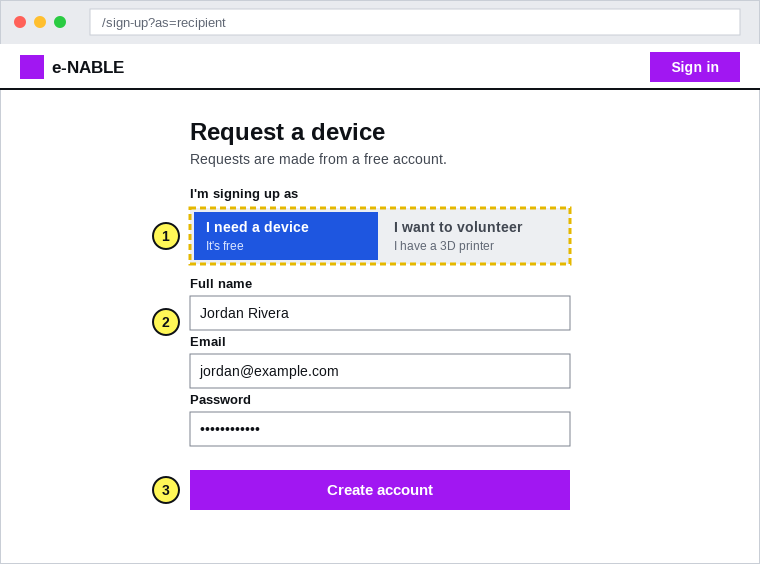
Go to Request a device. If you're a parent or caregiver, sign up with your name and email. You'll enter the person the device is for later on.
 (opens the picture full size in a new tab)
- Choose “I need a device”.
- Enter your name, email and a password. The page shows the password rules.
- Select Create account.
Step 2: Confirm your email
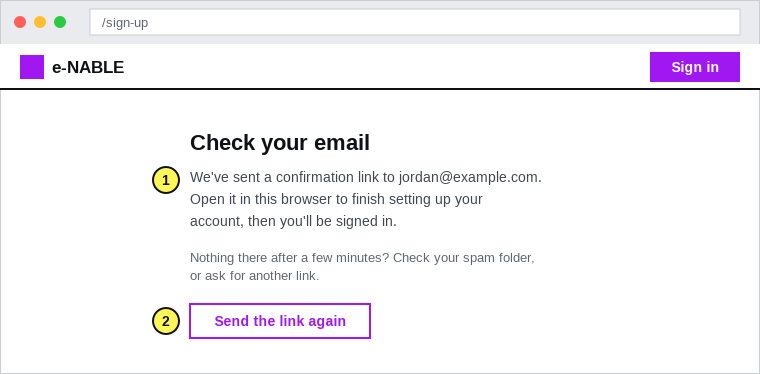
We email a confirmation link so we know the address is yours. Once you open it, you're signed in and taken to your account.
 (opens the picture full size in a new tab)
- Open the email we sent and select the link, in the same browser you signed up in.
- No email after a few minutes? Check spam, then select Send the link again.
Step 3: Complete your profile
Your address is never shown publicly. Your name is never shown publicly either. If your request is approved it can appear on the volunteer map only as an unnamed marker at an approximate location.
 (opens the picture full size in a new tab)
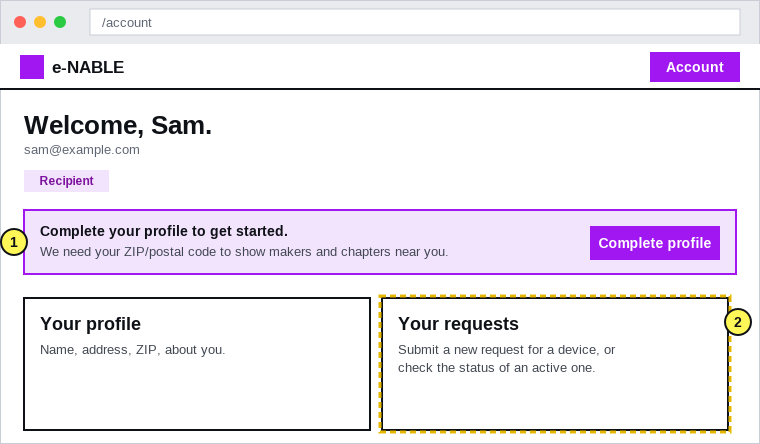
- Select Complete profile. You can't start a request until your address and ZIP are saved.
- Afterwards, Your requests is where you start and track requests.
 (opens the picture full size in a new tab)
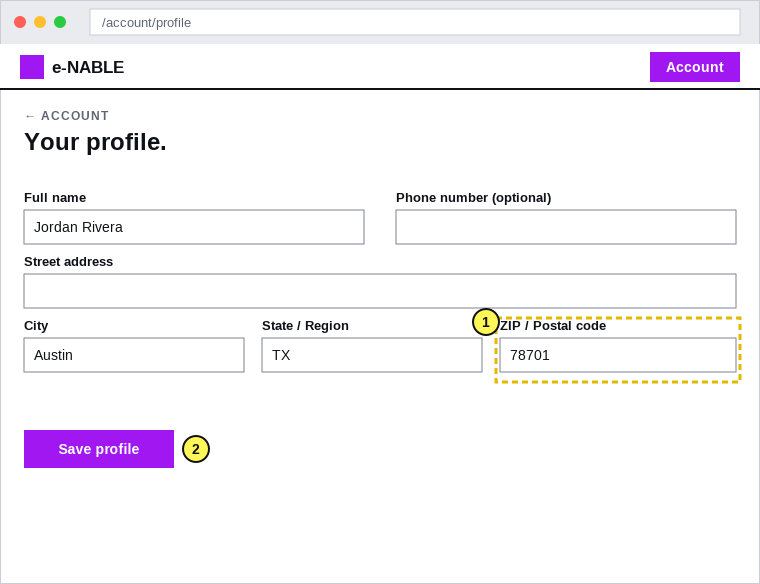
- Add your address, including your ZIP or postal code. It helps match you with nearby makers.
- Select Save profile.
Step 4: Start a request
From the dashboard open Your requests and choose Start a request. You can only have one draft at a time, so if you left one unfinished, you'll be taken straight back to it.
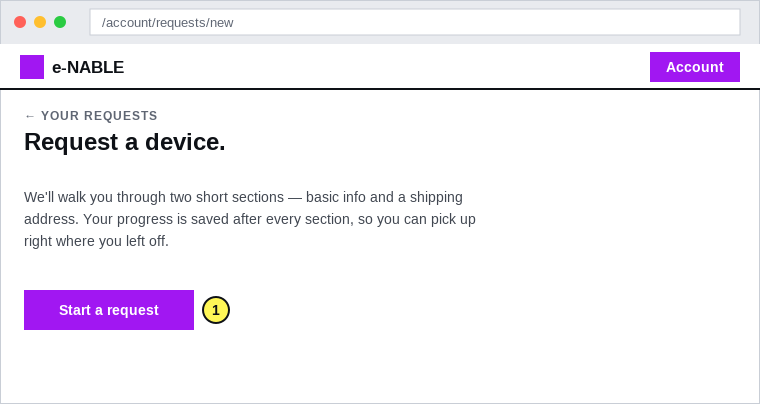 (opens the picture full size in a new tab)
- Select Start a request.
Step 5: Fill in the basic info
The request has four short sections: basic info, measurements and photos, the shipping address, and e-NABLE's two release documents. You can do them in any order and save as you go — all four need to be done before you can submit.
Keep private details out of the text boxes
Certified makers browsing open requests read what you write about how you'll use the device. Please don't put full names, addresses or phone numbers there. Those have their own fields and aren't shown to makers until one claims your request.
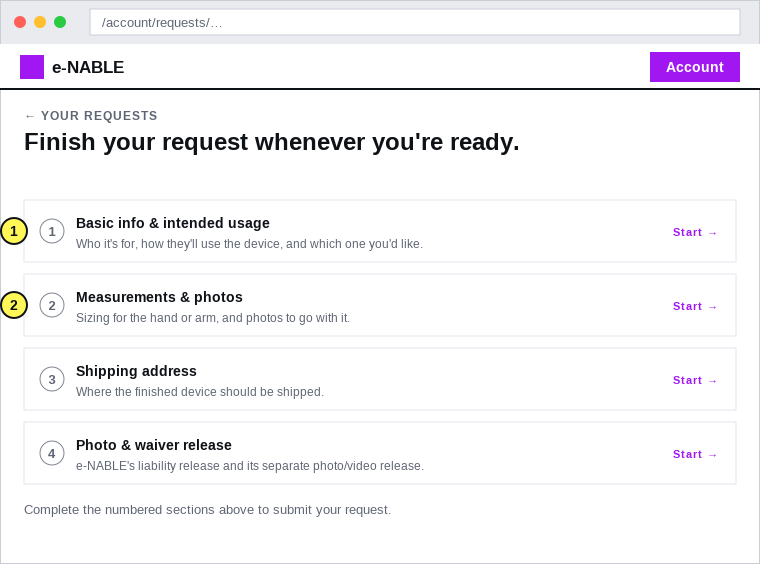 (opens the picture full size in a new tab)
- Start here: who it's for and how it will be used.
- Then work down the list — each section saves on its own.
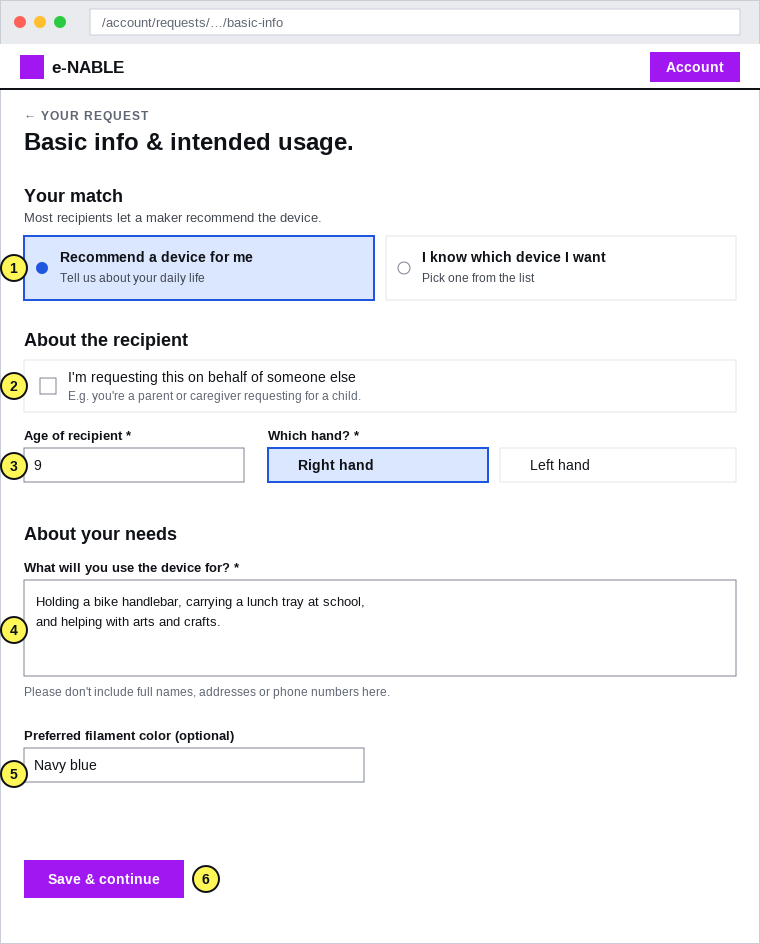 (opens the picture full size in a new tab)
- Choose “Recommend a device for me” and a maker will suggest the best design, or pick a specific device yourself.
- Tick the box if you're requesting for someone else, then enter their name.
- Enter the recipient's age and which hand the device is for.
- Describe how the device will be used: daily tasks, school, sports, hobbies. The more specific, the better the match.
- Optional: a favorite filament color.
- Select Save & continue.
Step 6: Add a shipping address
This is where the maker will mail the device, so double-check the street and ZIP code.
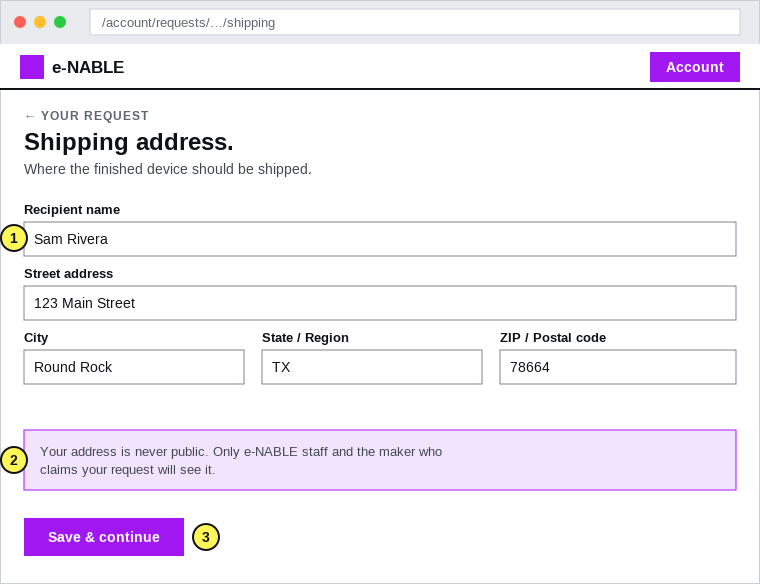 (opens the picture full size in a new tab)
- Enter the name and address the finished device should be sent to.
- Your address is only shown to e-NABLE staff and to the maker who claims your request.
- Select Save & continue.
Step 7: Submit for review
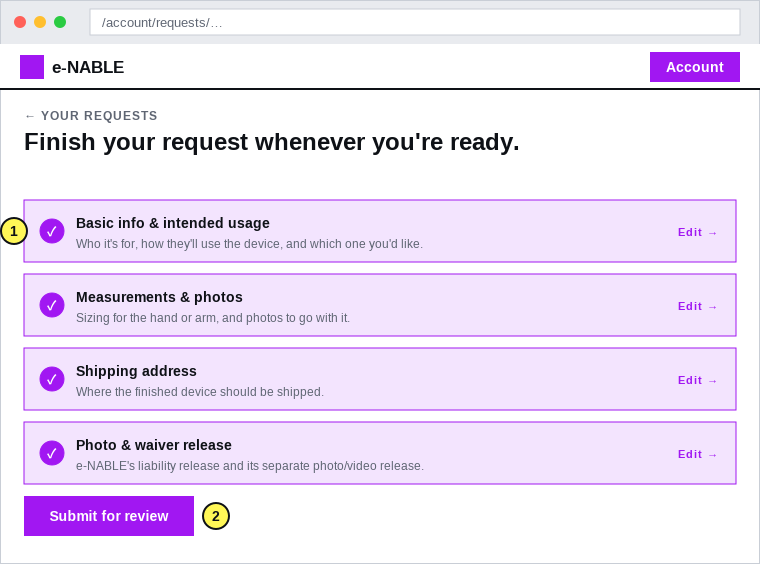
Until you submit, your request is a private draft that only you can see, and you can edit either section. If you change your mind, Discard this draft is at the bottom of the page.
 (opens the picture full size in a new tab)
- All four sections show a tick.
- Select Submit for review. Nothing goes to makers until you do this.
Step 8: Wait for a maker
Once approved, the status becomes Open — waiting for a maker and certified makers can see it. We'll email you when it goes live and again when a maker claims your case. A reviewer may leave you a short note, which appears on the request page.
Waiting is the longest part and depends on which makers are nearby and certified for the device. If a request isn't accepted, the page explains why and you can start a new one. You can also cancel a request while it's under review or still waiting for a maker, using the link at the bottom of the request page.
Consider emailing a chapter near you
e-NABLE chapters are local groups of volunteers. We recommend you consider emailing one near you (find it on the chapters page): they may be able to give you a more personal experience, such as meeting in person or help with fit, while your request waits for a maker.
What makers can see
Browsing makers see the city and state, an age range, which hand and what you wrote about its use. They never see your name, street address, ZIP or phone number. The maker who claims your request then sees your name, delivery address, contact email, limb photos and videos, and your phone number only if you chose to share it.
 (opens the picture full size in a new tab)
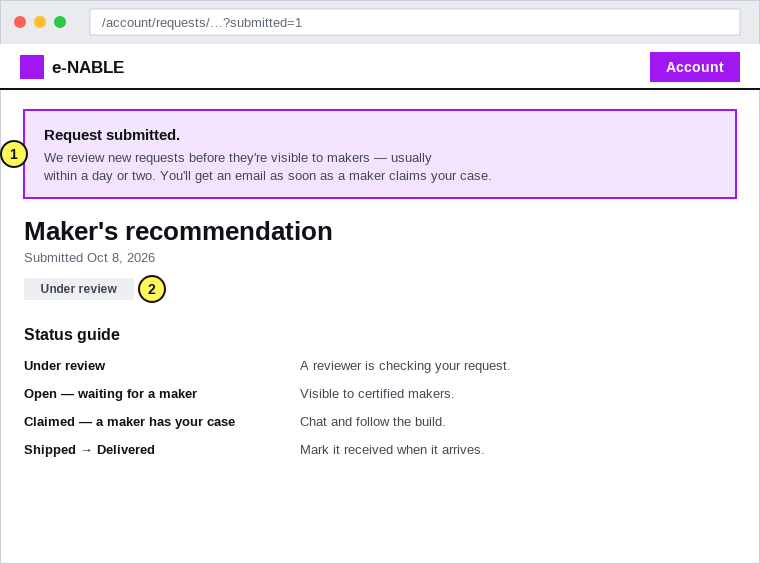
- A confirmation banner tells you the request was sent.
- Your status starts as Under review. e-NABLE checks every request, usually within a day or two.
Step 9: Follow your case
When a maker claims your request, a banner on your request page links to the case. While it's active, the case also appears under My requests in the side menu.
Set up a short video call
We highly recommend a short video call with your maker early on, to answer questions and talk about what you'd like the device to do. If the device is for a child, it can be just the parents or guardians on the call. Ask your maker in the case chat, and agree a time that suits you.
Before shipping, a quality reviewer checks the finished device. You'll see “In quality review” on the case page, and if the reviewer asks for changes your maker revises the build and resubmits. This is normal and just makes sure the device is a good one.
If your maker needs to step back, e-NABLE puts your request back in the queue for another maker and the chat stays readable.
 (opens the picture full size in a new tab)
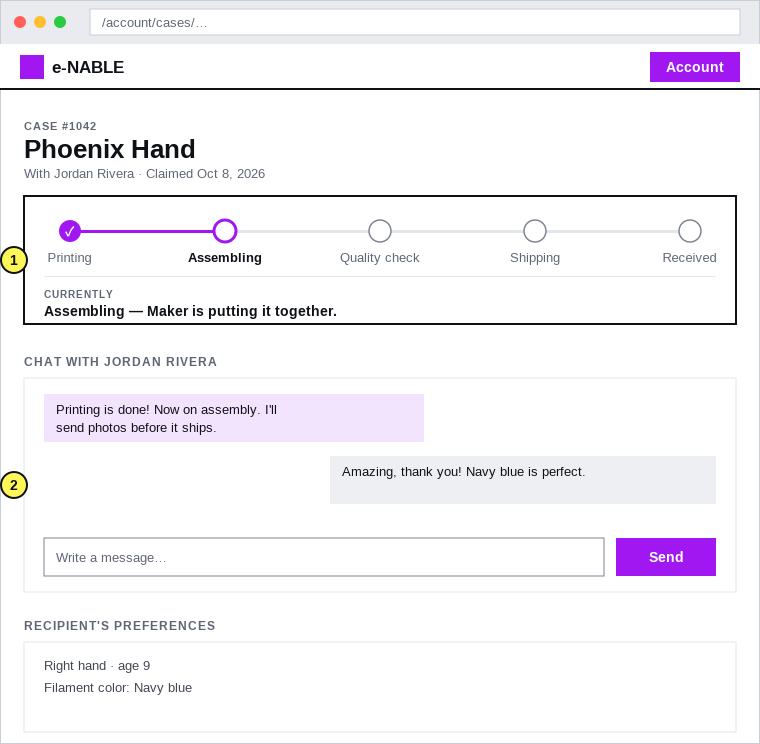
- The tracker shows the stage: Printing, Assembling, Quality check, Shipping, Received.
- Chat with your maker here. Say hello, answer their questions and ask for updates.
Step 10: Confirm it arrived and say thanks
Once your maker ships it, a tracking number may appear on the case page. Only you can mark the case as received, so please do it when the package arrives; that also tells e-NABLE the device made it.
After that the thank-you and check-in options appear. You can also submit a story to share your experience with the community, and you're welcome to make a new request if the device breaks or your needs change.
 (opens the picture full size in a new tab)
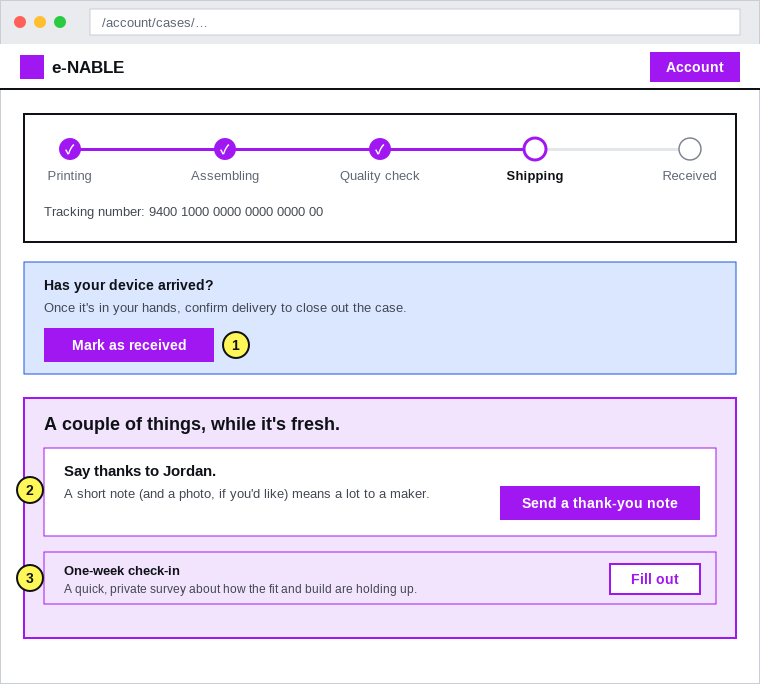
- When the device arrives, select Mark as received and confirm. The case is then complete.
- Send your maker a thank-you note, with a photo if you like. It means a lot to a volunteer.
- Fill out the one-week check-in, a quick private survey about fit and build. A six-month check-in unlocks later.
Troubleshooting
I never got the confirmation email.
Check your spam folder, then use Send the link again on the “Check your email” screen. Open the link in the same browser you used to sign up.
It says “Finish your profile first.”
We need your address and ZIP or postal code before you can start a request, so makers near you can be matched. Select Complete your profile and save it.
I can't submit; the button isn't there.
The Submit for review button appears once all four sections are ticked — basic info, measurements and photos, shipping address, and the two release documents. Open any that aren't ticked, check them and save again. The releases need the recipient's age from the basic info section first, so start there.
Can I change my request after submitting it?
Not directly. If something is wrong, cancel it while it's under review or waiting for a maker and start a new one. If a maker has already claimed it, please contact e-NABLE.
It's been “Under review” for several days.
Reviews are usually done within a day or two. If it's been longer, please let us know.
My request was “Not accepted.”
Open the request to read the reviewer's note. If it was a mistake or something can be fixed, you're welcome to start a new request.
Something looks wrong or broke.
Please contact us with what you were doing and what you expected. A screenshot helps.